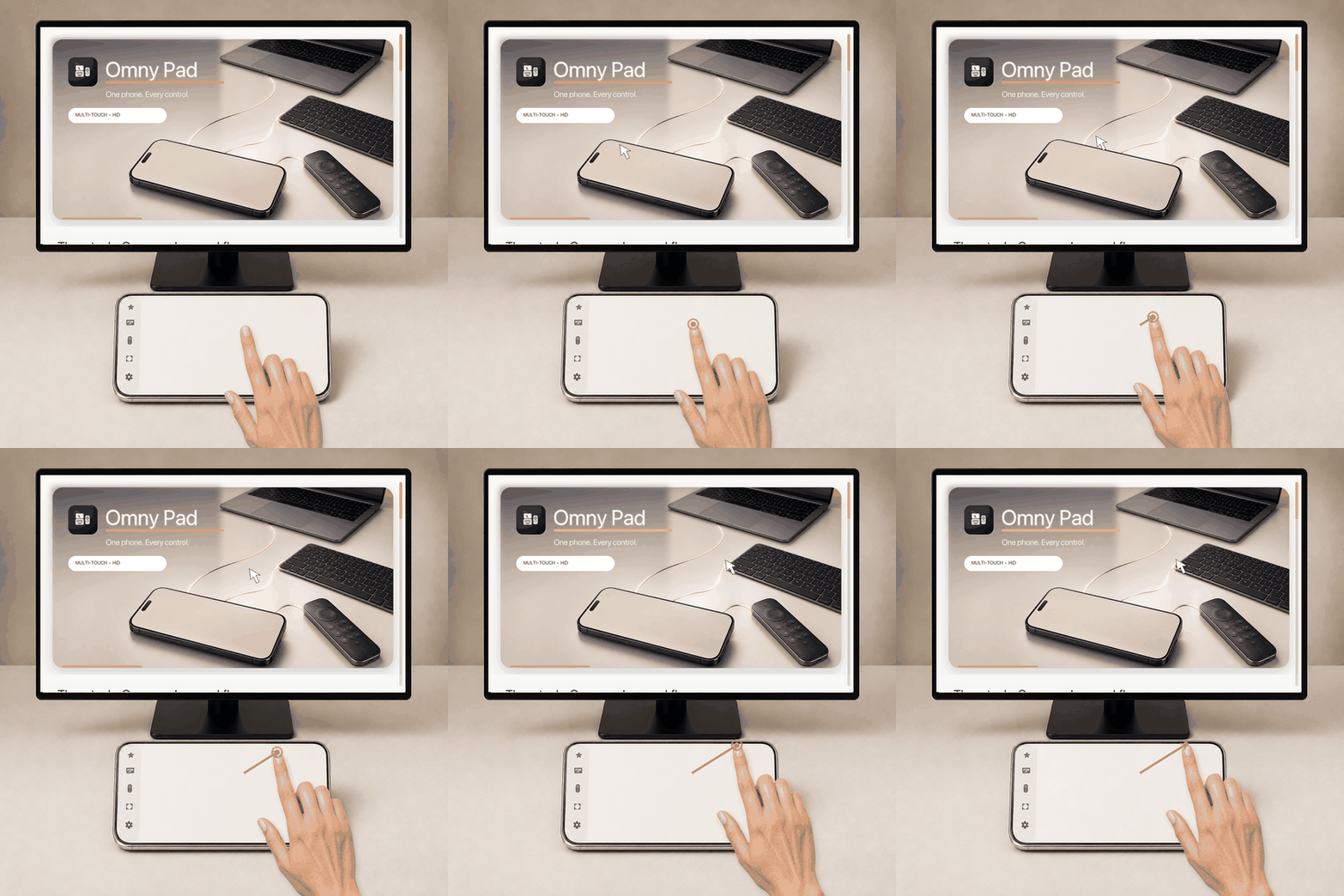
1 finger
Move the pointer
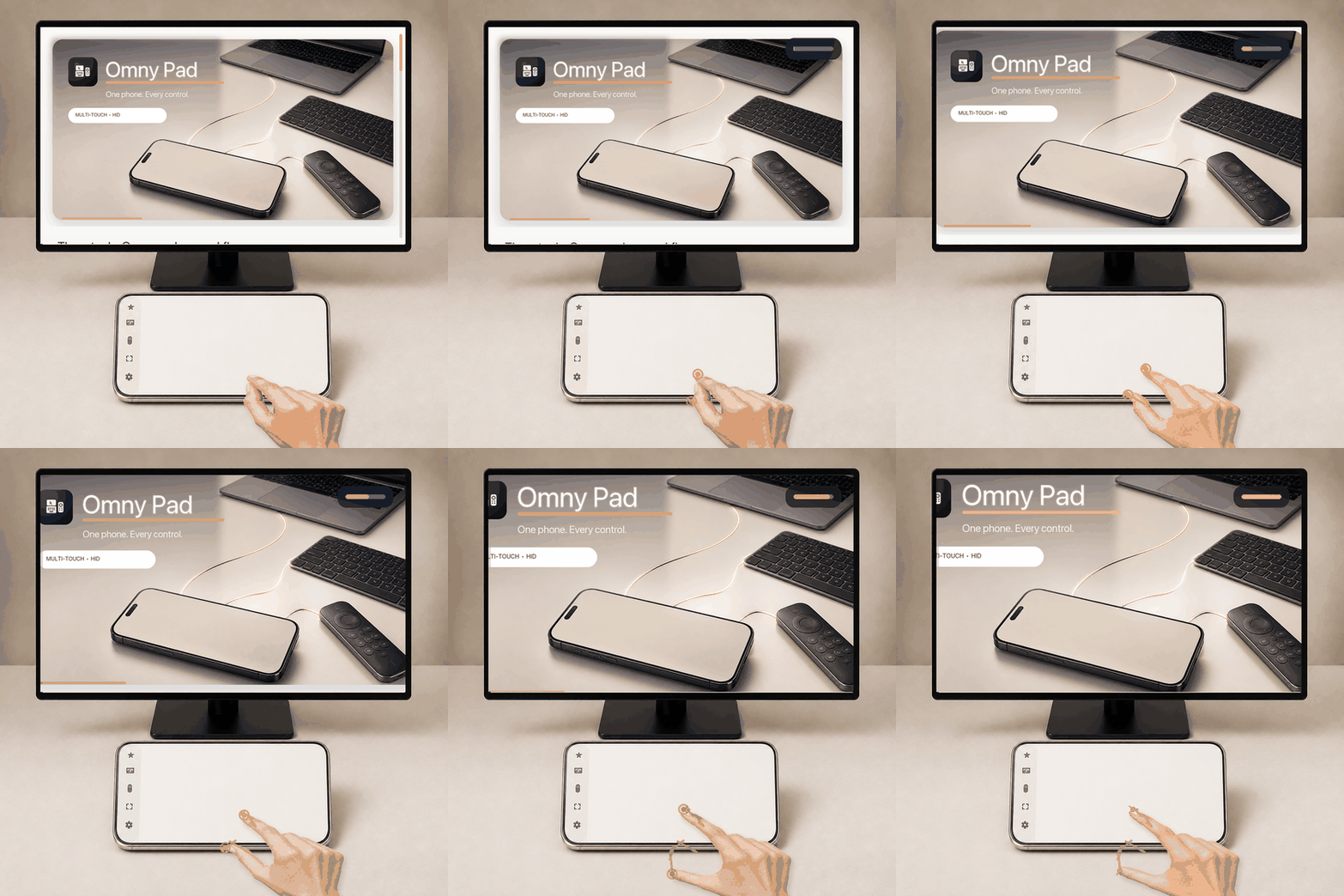
Slide one finger in any direction. The pointer follows the same direction on the connected device.

Omny Pad / Gesture guide
Watch the hand, follow the motion path, and see what changes on the connected device. Every supported trackpad gesture is shown below.
Let the phone support your palm and move only the fingers needed for the gesture. Orange contact marks show the exact fingertip positions.
One finger
Keep the movement light. You can lift your finger and reposition it at any time, just as you would on a physical trackpad.
Slide one finger in any direction. The pointer follows the same direction on the connected device.
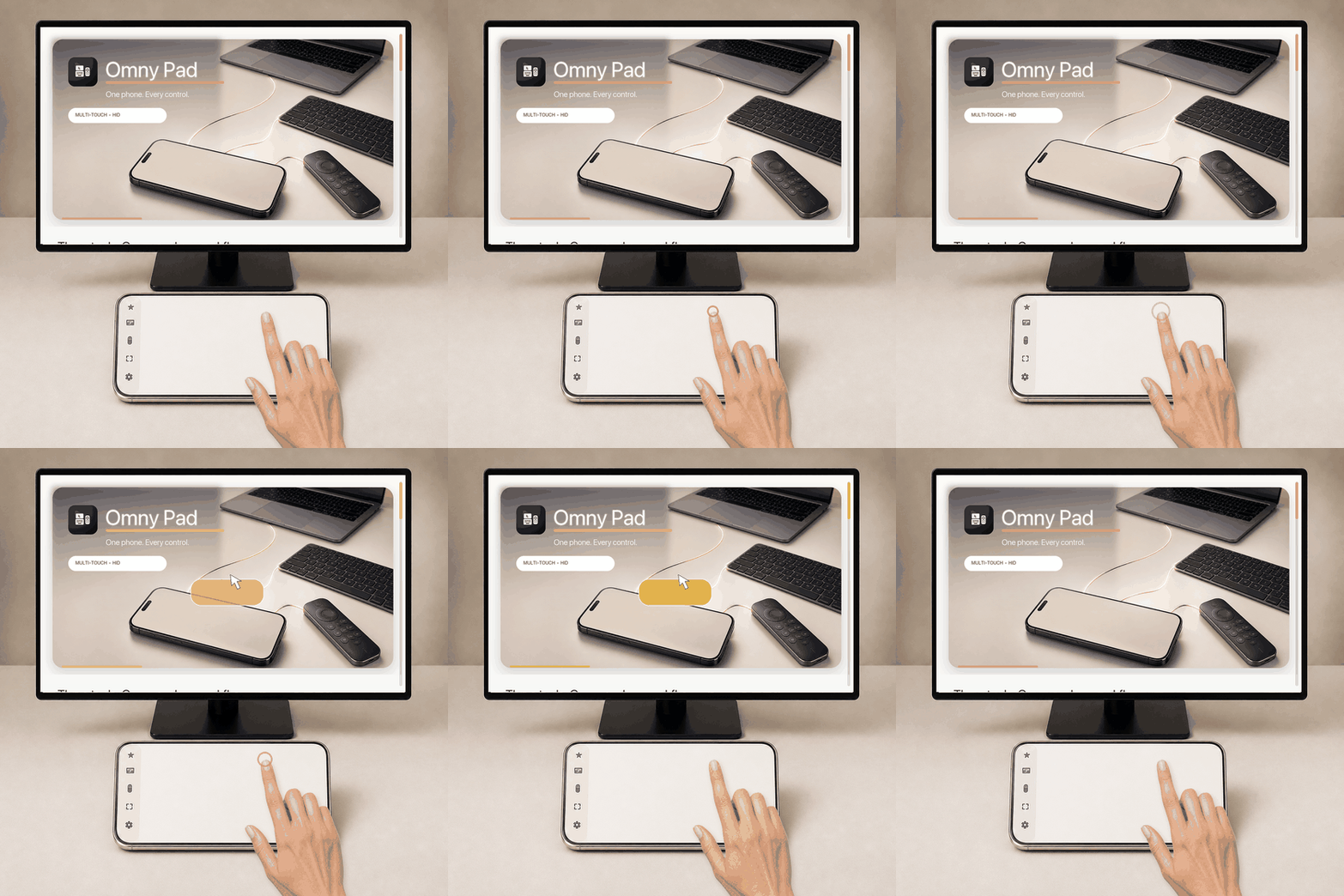
Tap once, then lift your finger without moving it sideways.
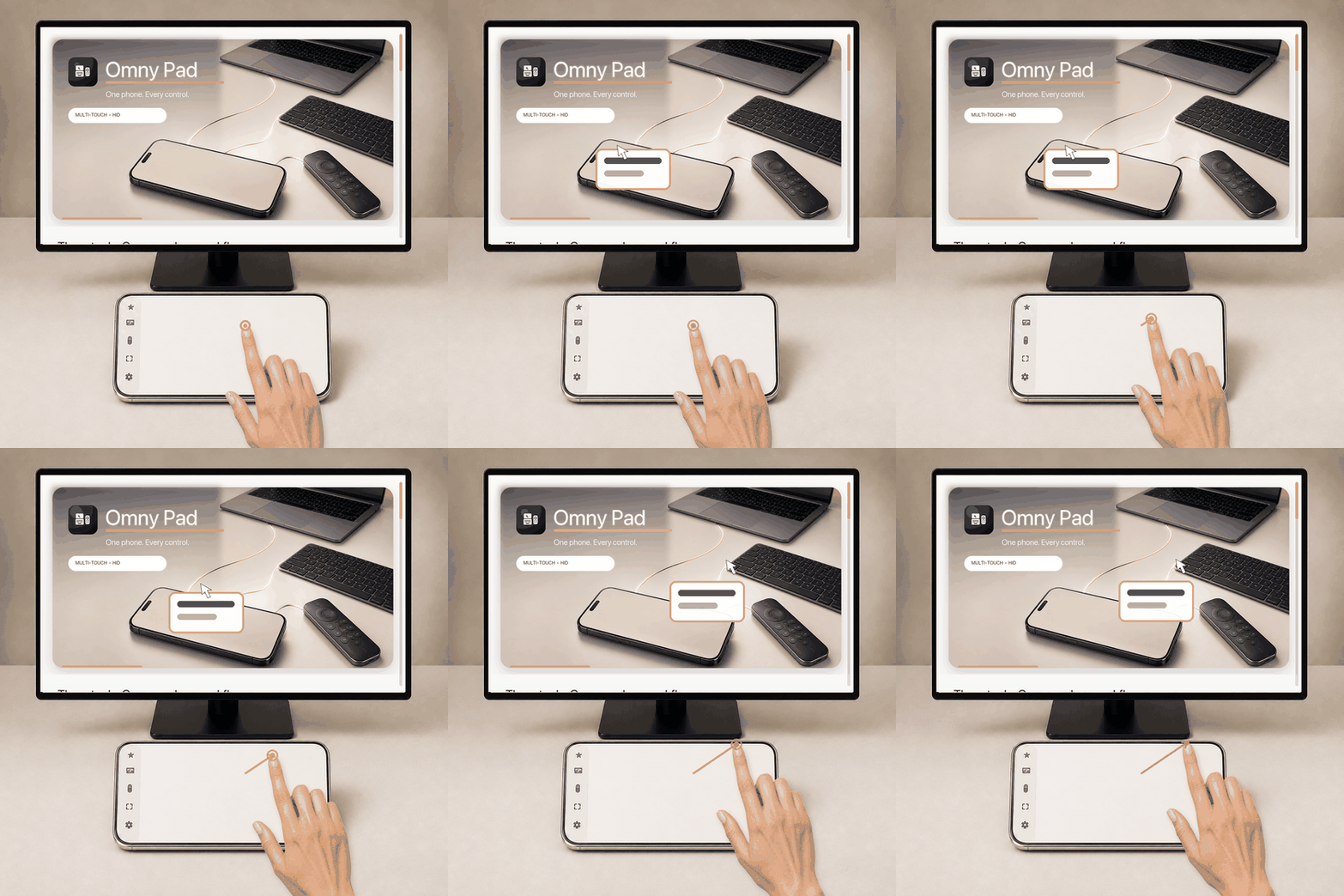
Press and hold, wait for the contact cue, then slide while keeping the same finger down.
Two fingers
Place two fingertips side by side and move them together. Keeping the fingers parallel makes scrolling smoother and easier to control.
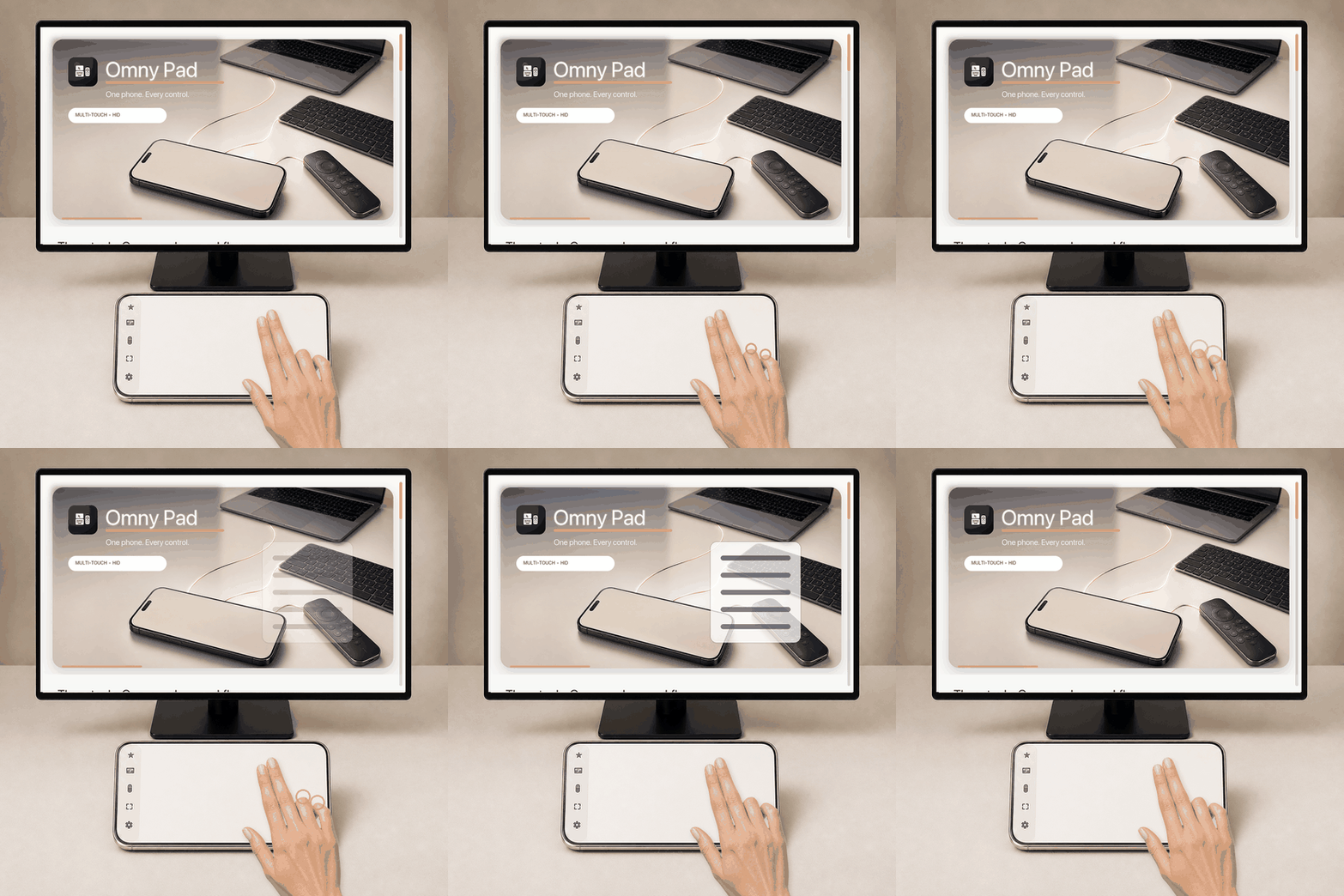
Tap two fingers together and lift them without sliding.
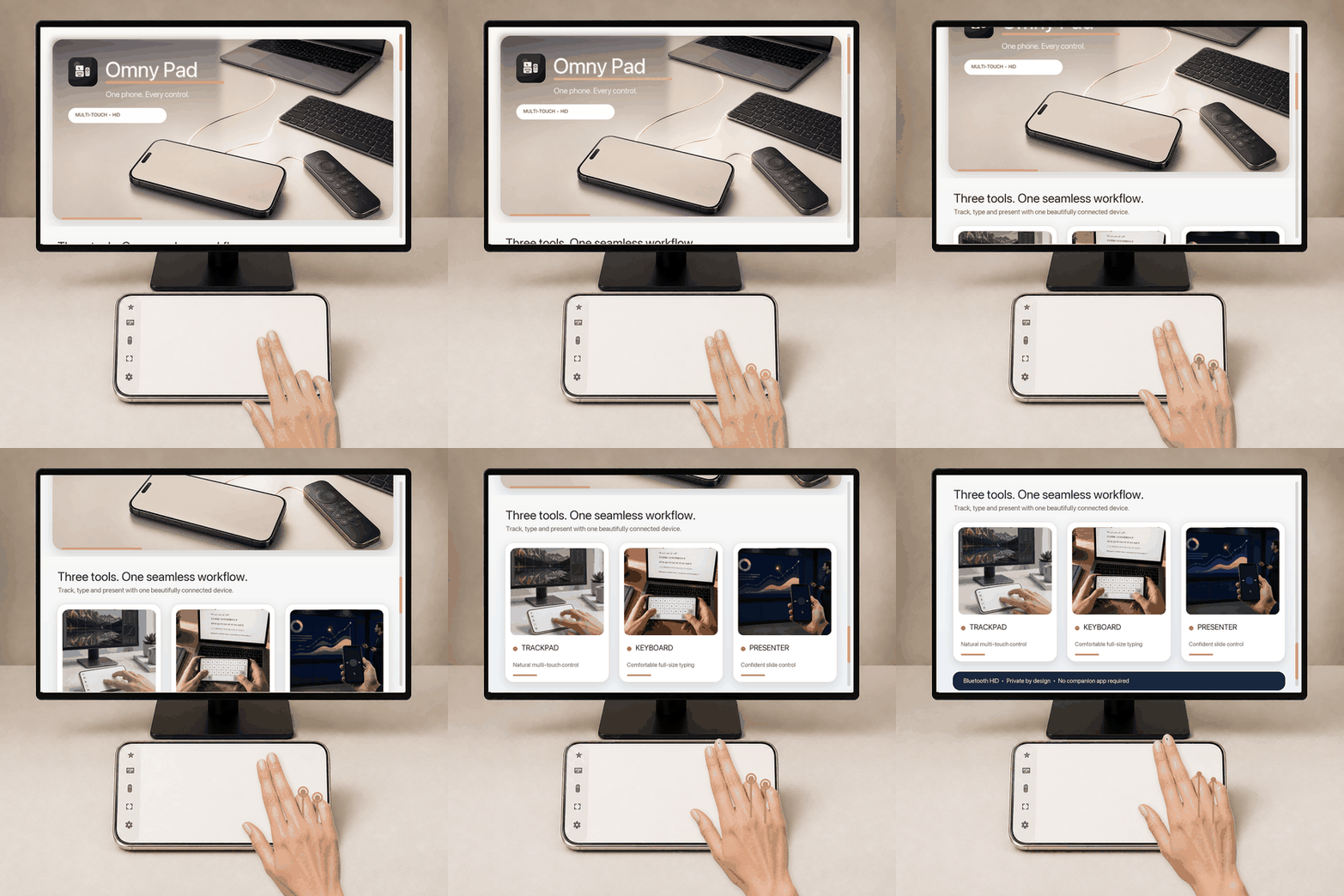
Rest two fingers side by side, then move both vertically as one natural motion.
Spread two fingers to zoom in. Bring them together to zoom out.
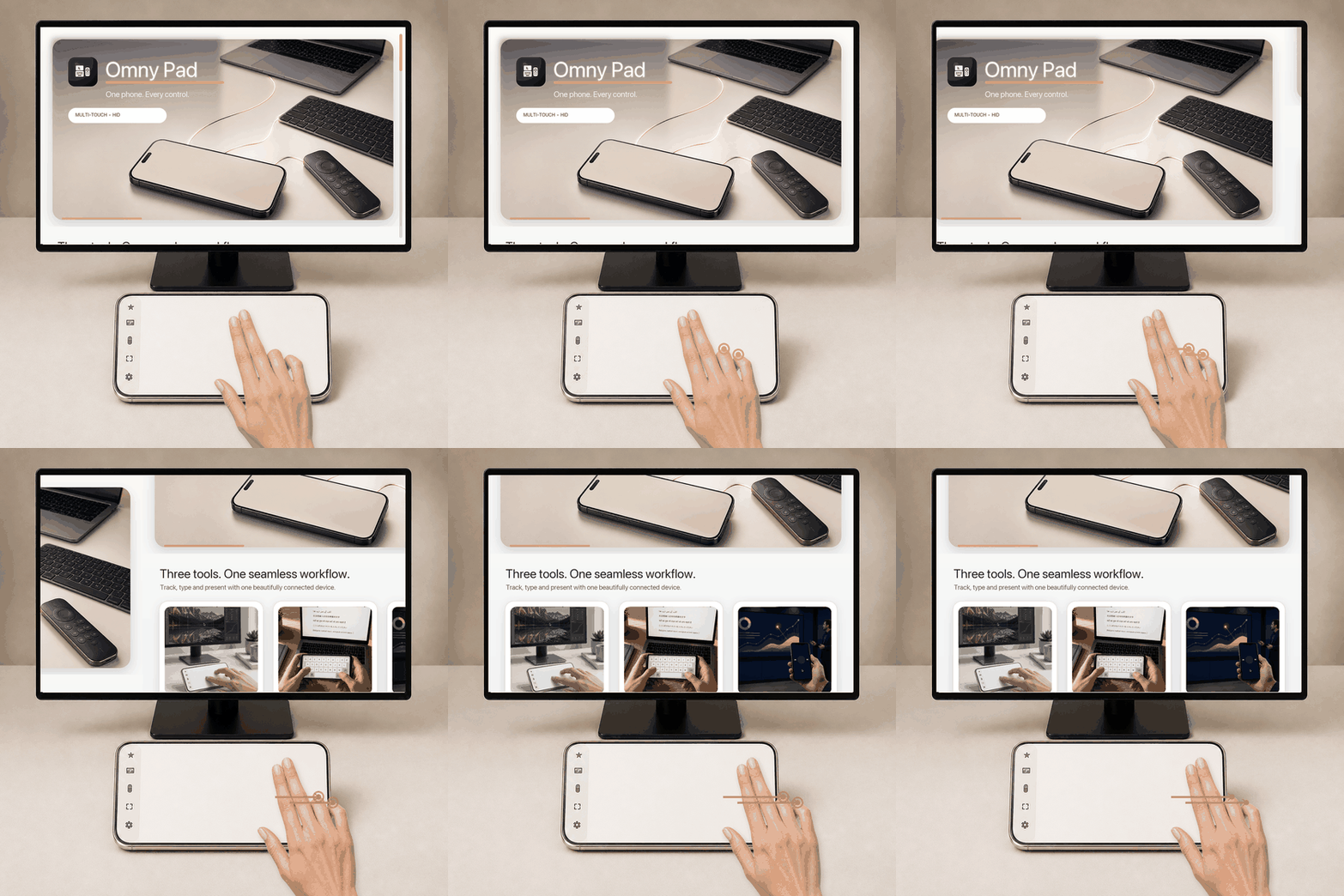
Swipe two fingers horizontally with a short, deliberate flick.
The exact command follows the selected host OS.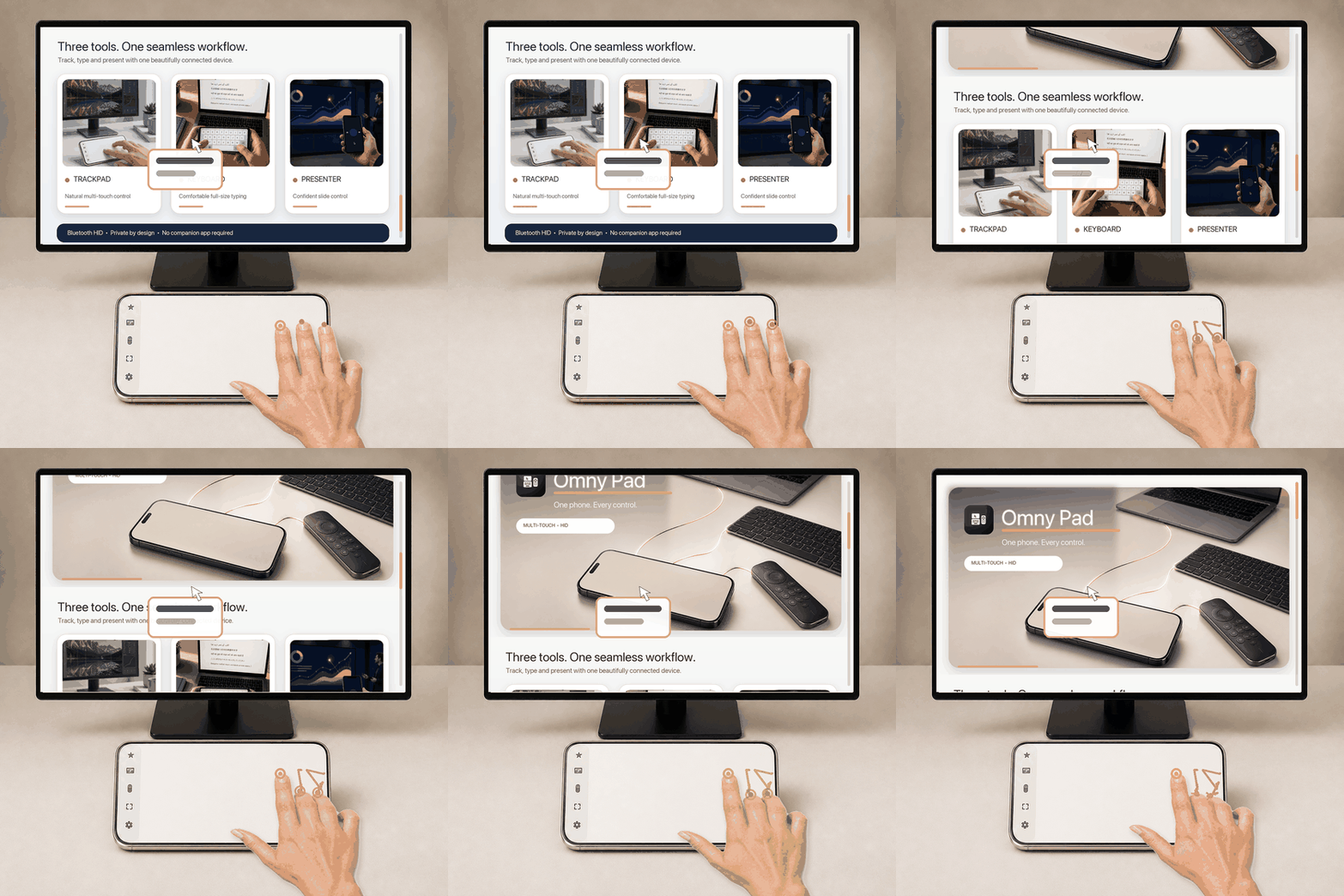
Keep the first finger holding the item, add two more fingers, then move those two vertically together.
Three fingers
These gestures send the appropriate keyboard shortcut for the OS profile selected in Omny Pad. The result therefore differs by host.
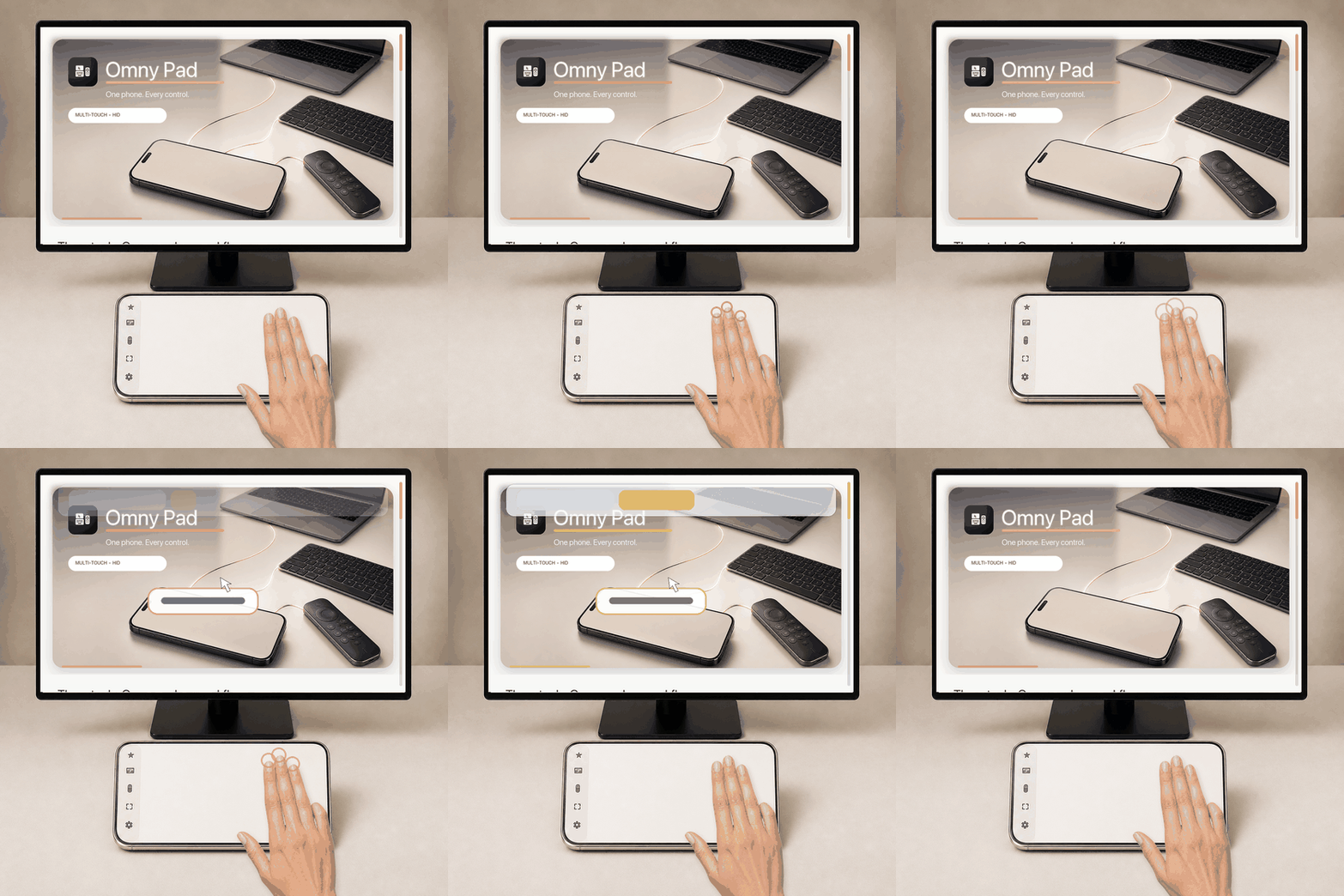
Tap three fingers together without sliding.
The focused app decides the result—for example, opening a link in a new tab or enabling auto-scroll.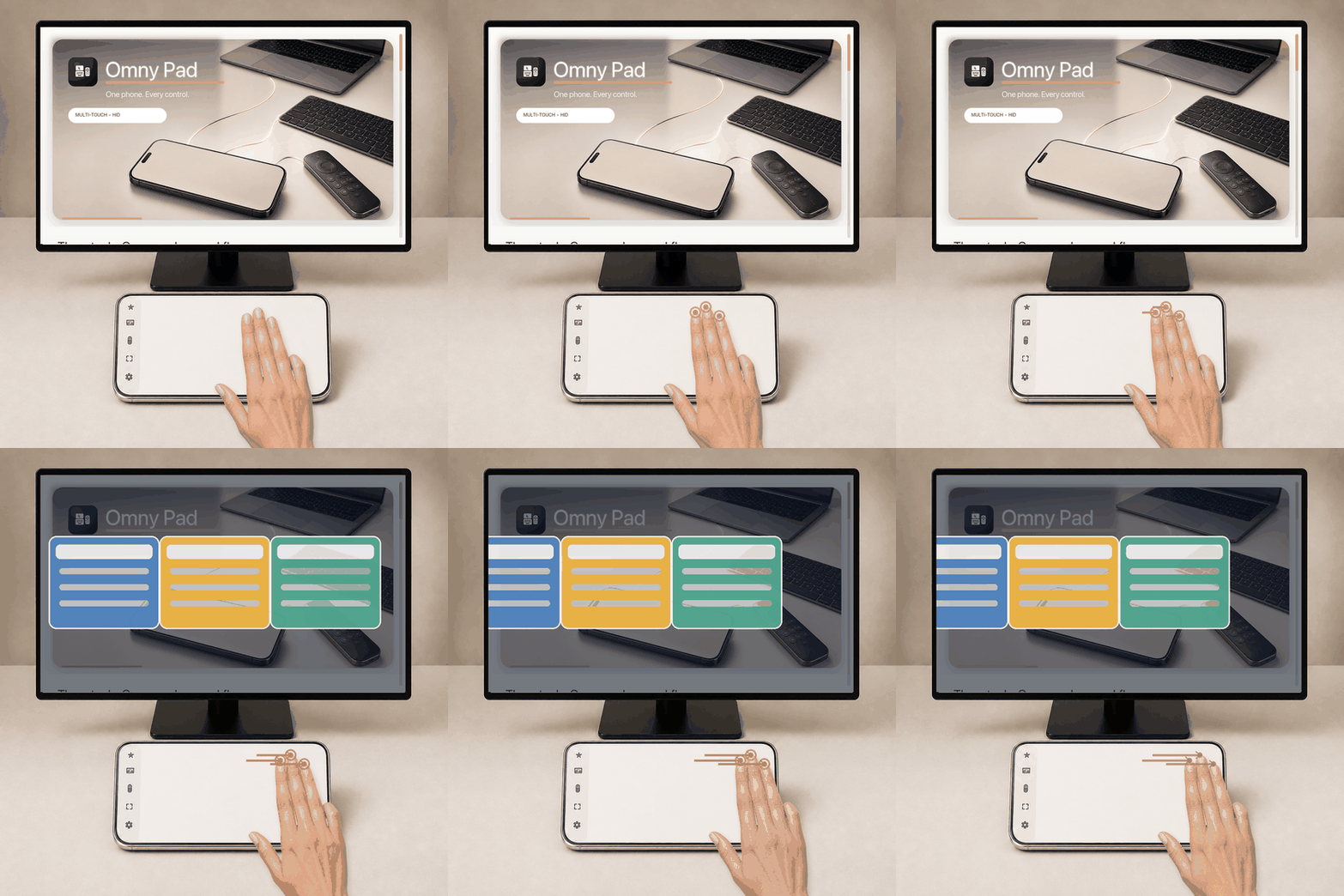
Move three fingers left or right in one continuous stroke.
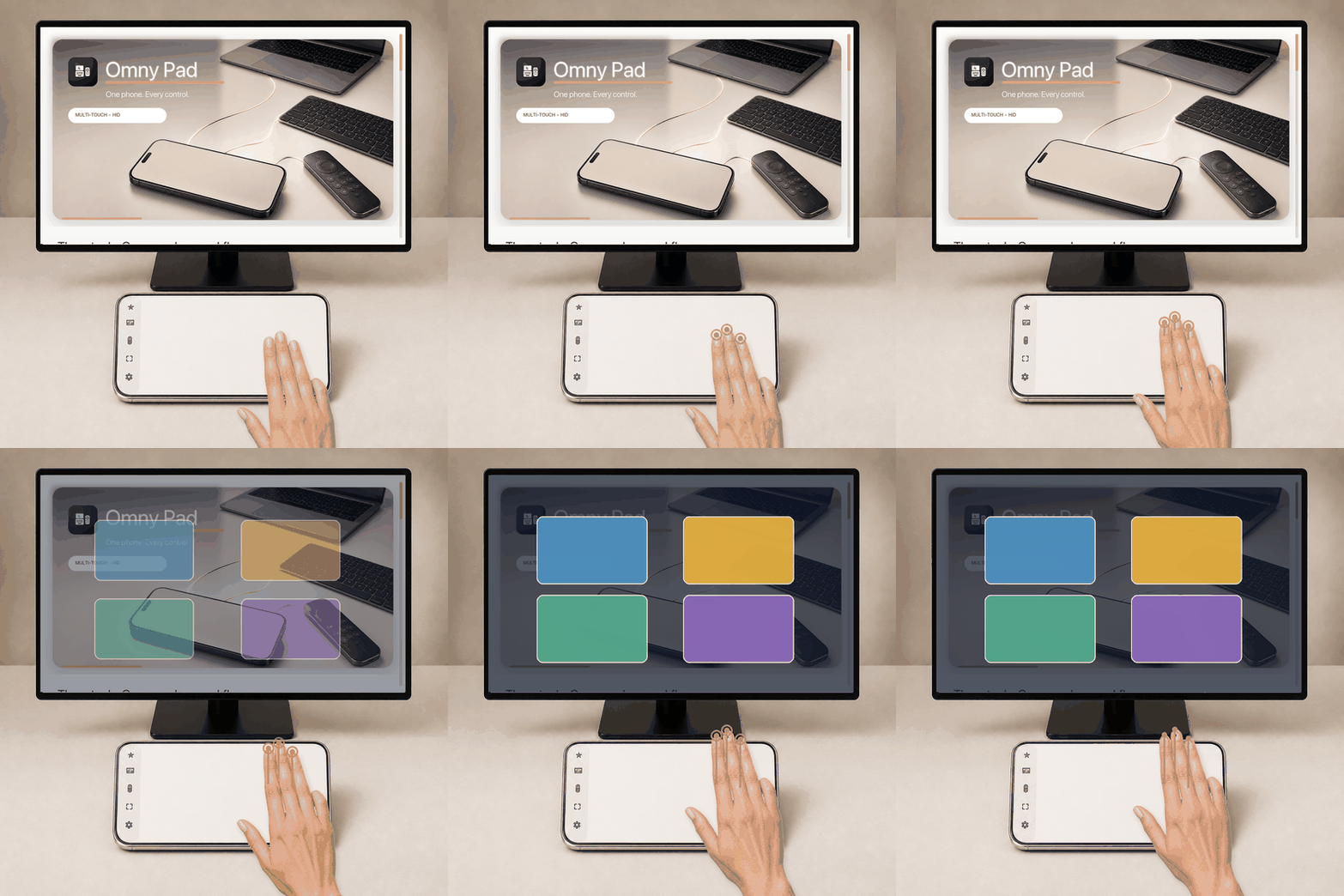
Move three fingers upward together, keeping their spacing steady.
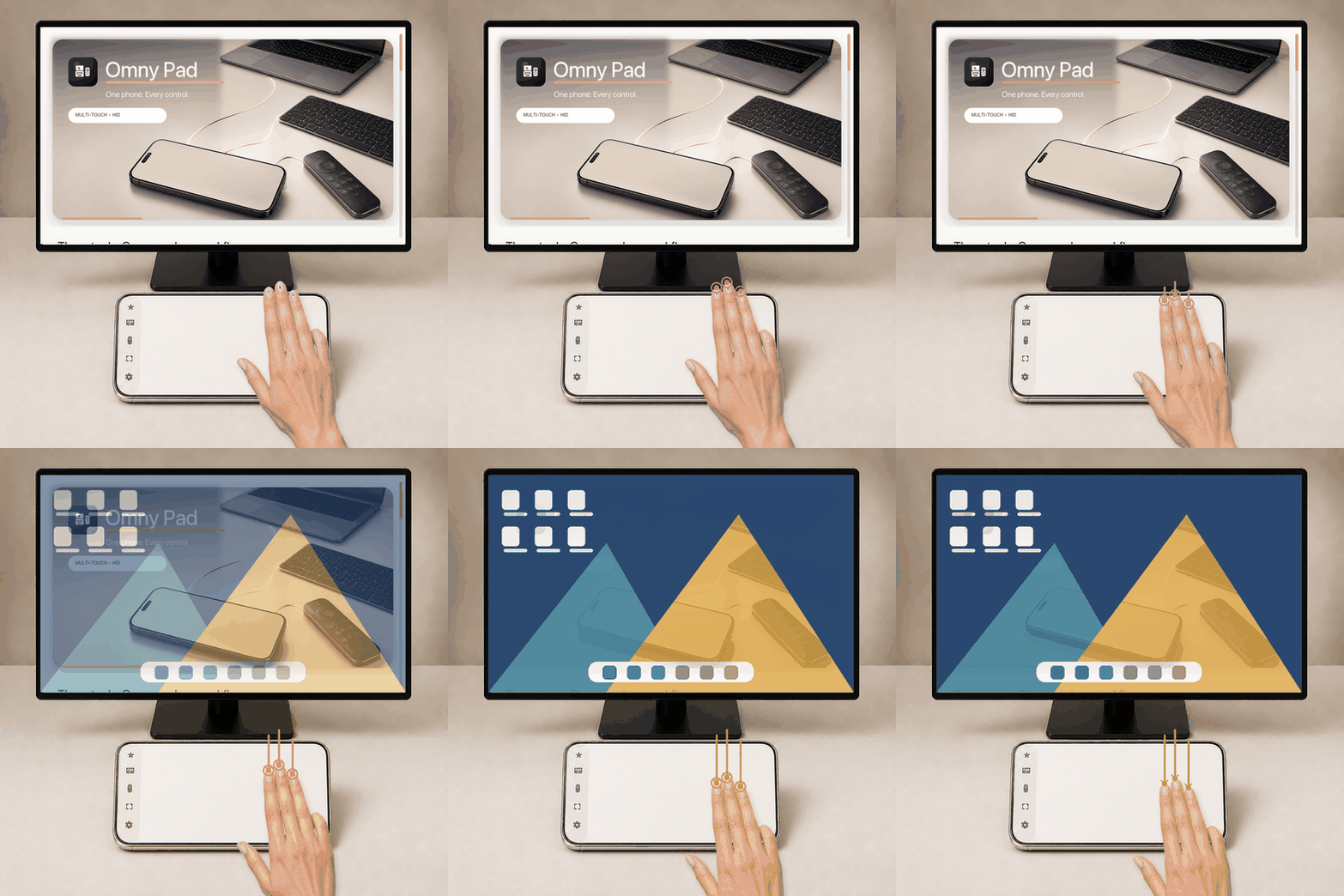
Move three fingers downward together in a single controlled motion.
Desktop, App Exposé, Search, or Home—depending on the selected OS.Four fingers
Use the flat pads of four fingers and keep them moving as one group. Windows also supports a four-finger tap for Quick Settings.
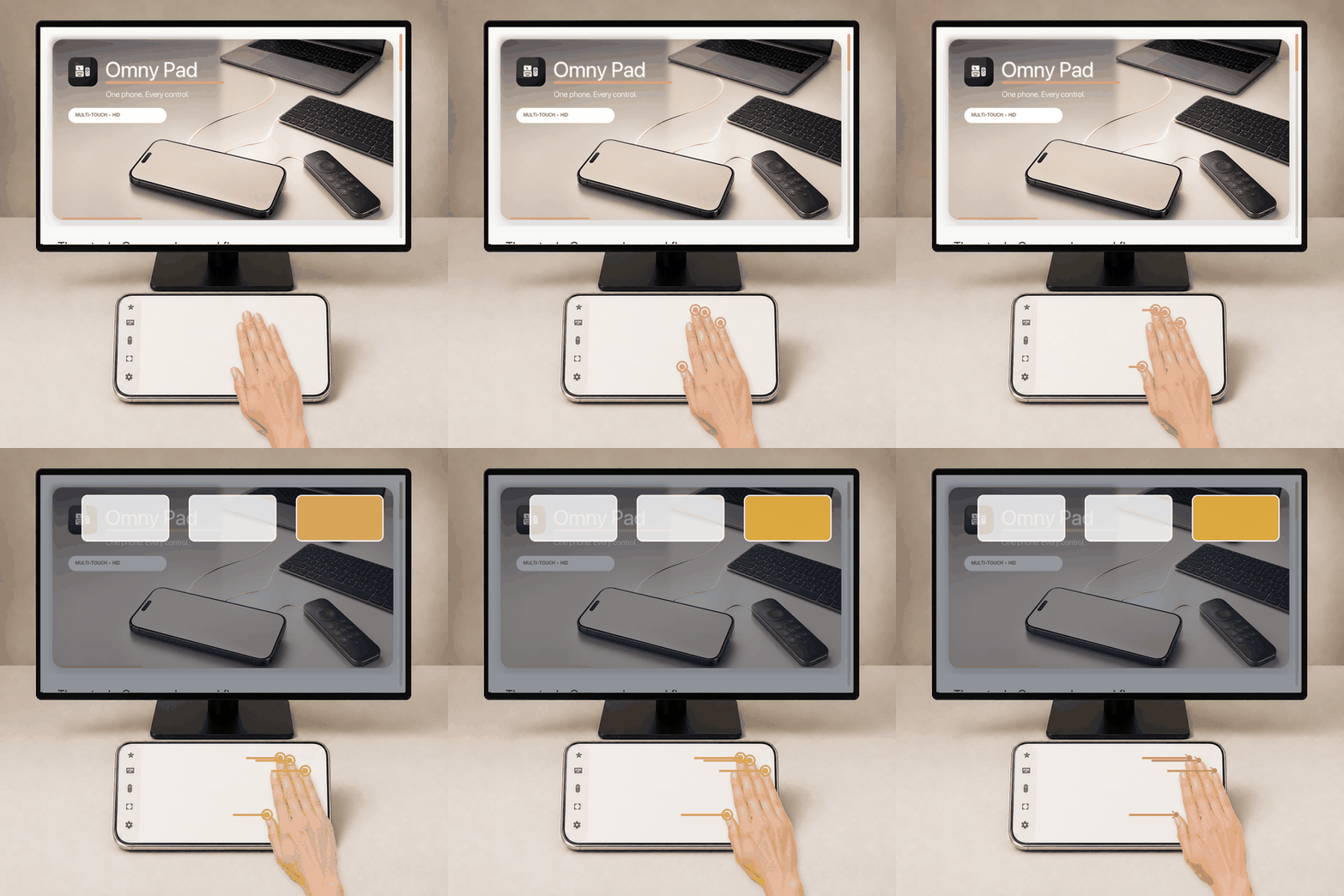
Swipe four fingers left or right while keeping them parallel.
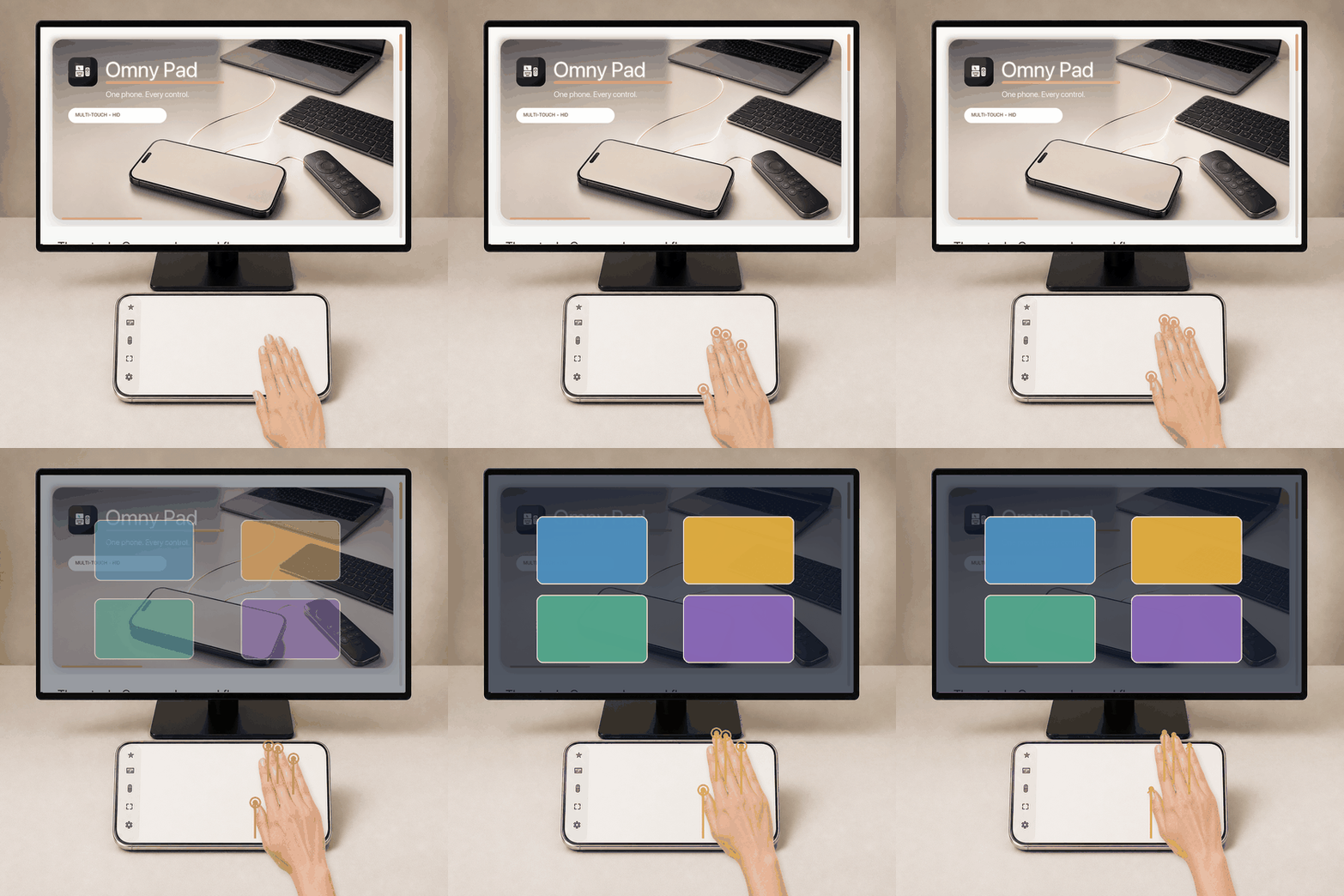
Move four fingers upward together in one continuous stroke.
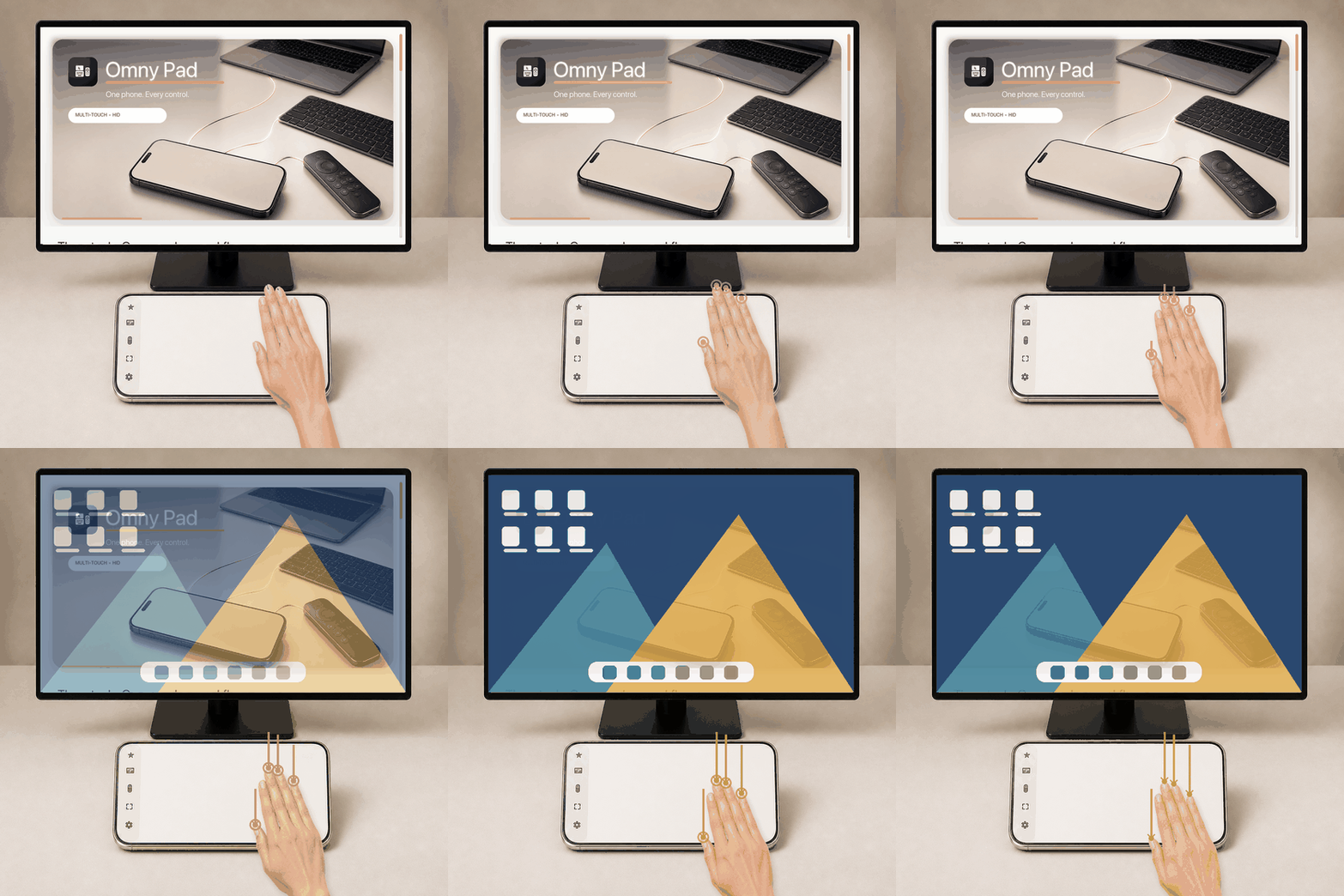
Move four fingers downward together without spreading them apart.
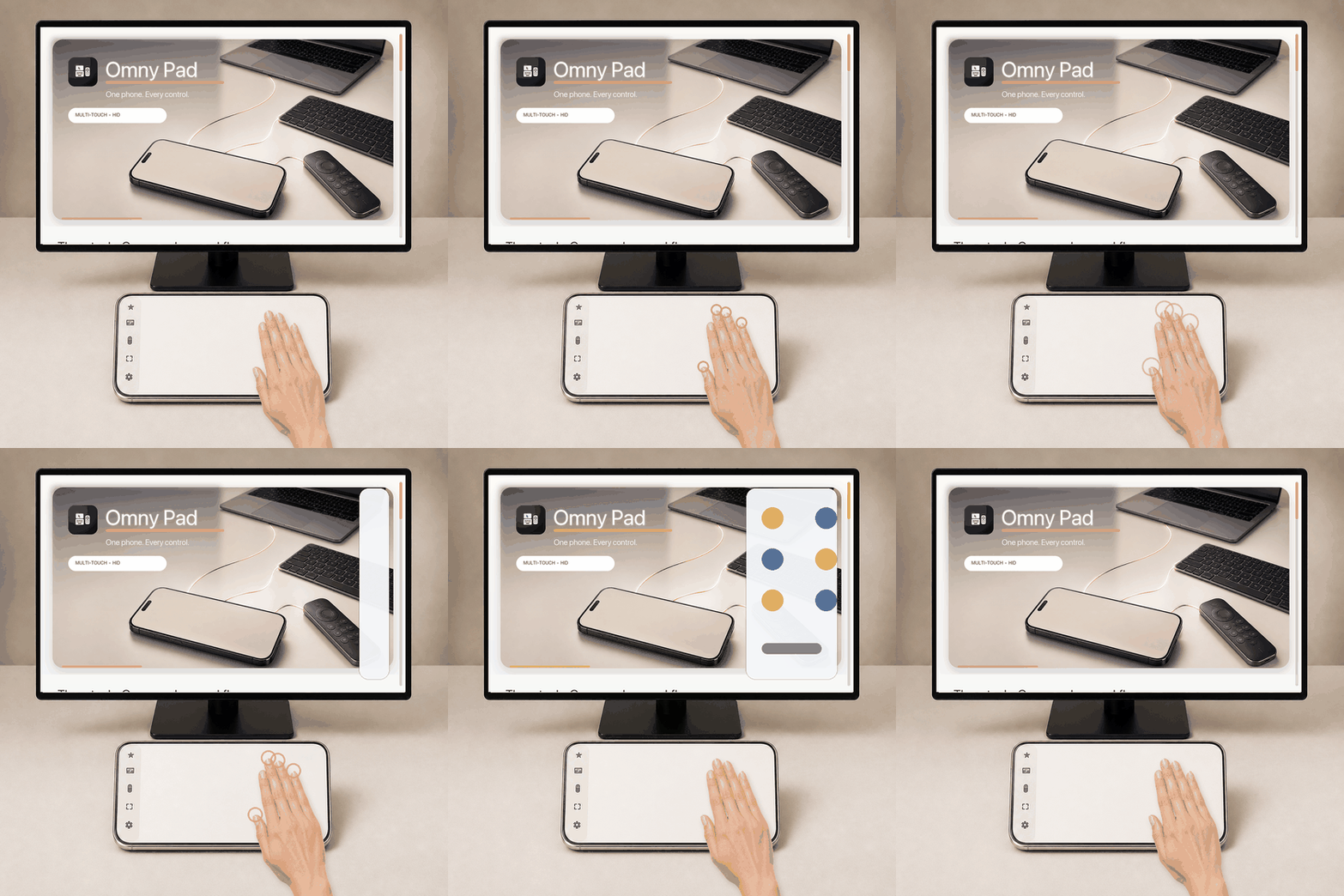
On Windows, tap four fingers together and lift them without sliding.
Windows only. Omny Pad leaves this gesture unassigned on other OS profiles.Host mapping
Omny Pad sends standard Bluetooth HID mouse reports and keyboard shortcuts. It does not pretend to be an Apple Trackpad or Windows Precision Touchpad, so shortcuts and host settings can affect the result.
| Gesture | Windows | macOS | Linux | Android | iPadOS / iOS |
|---|---|---|---|---|---|
| 3 fingers left / right | Adjacent app | Previous / next Space | Previous / next workspace | Previous / next app | Previous / next app |
| 4 fingers left / right | Previous / next virtual desktop | Previous / next Space | Previous / next workspace | Previous / next app | Previous / next app |
| 3 or 4 fingers up | Task View | Mission Control | Activities overview | Recent apps | Not assigned |
| 3 or 4 fingers down | Show desktop | App Exposé | Show desktop | Search | Home |
| 4-finger tap | Quick Settings | Not assigned | Not assigned | Not assigned | Not assigned |