Windows
Settings › Bluetooth & devices › Add device › Bluetooth.

Omny Pad / User manual
A visual, task-based manual for connecting a host and using every current Omny Pad control surface.
START
Omny Pad turns a compatible Android phone or tablet into a Bluetooth trackpad, keyboard, media remote, presenter, numeric keypad, and calculator. All current premium features are included with minimal advertising and no recurring five-minute pop-up ads.
On first launch, review the privacy notice, choose a theme, and add your first device. You can revisit the tutorial, user manual, gesture guide, themes, and connected-device settings at any time.
CONNECT
Allow Nearby devices access when Android asks. Omny Pad uses it to register and connect as a Bluetooth keyboard and mouse.
Open Bluetooth settings on the Mac, Windows PC, iPad, iPhone, Linux computer, or Android device you want to control. Select the phone name shown by Omny Pad and confirm pairing.
A Bluetooth connection can appear before keyboard and pointer input are ready. Start controlling only after Omny Pad reports that the selected device is connected and ready.
Settings › Bluetooth & devices › Add device › Bluetooth.
Use Bluetooth settings on Mac and iPad. On iPhone, also enable AssistiveTouch before using pointer control.
Pair in the desktop Bluetooth panel. Gesture shortcuts can vary by distribution and desktop environment.
Touch and hold Bluetooth in Quick Settings, then select the phone name shown in Omny Pad from the available devices. Menu names may vary by manufacturer and Android version.
Available mouse and keyboard actions depend on the receiving device and app.
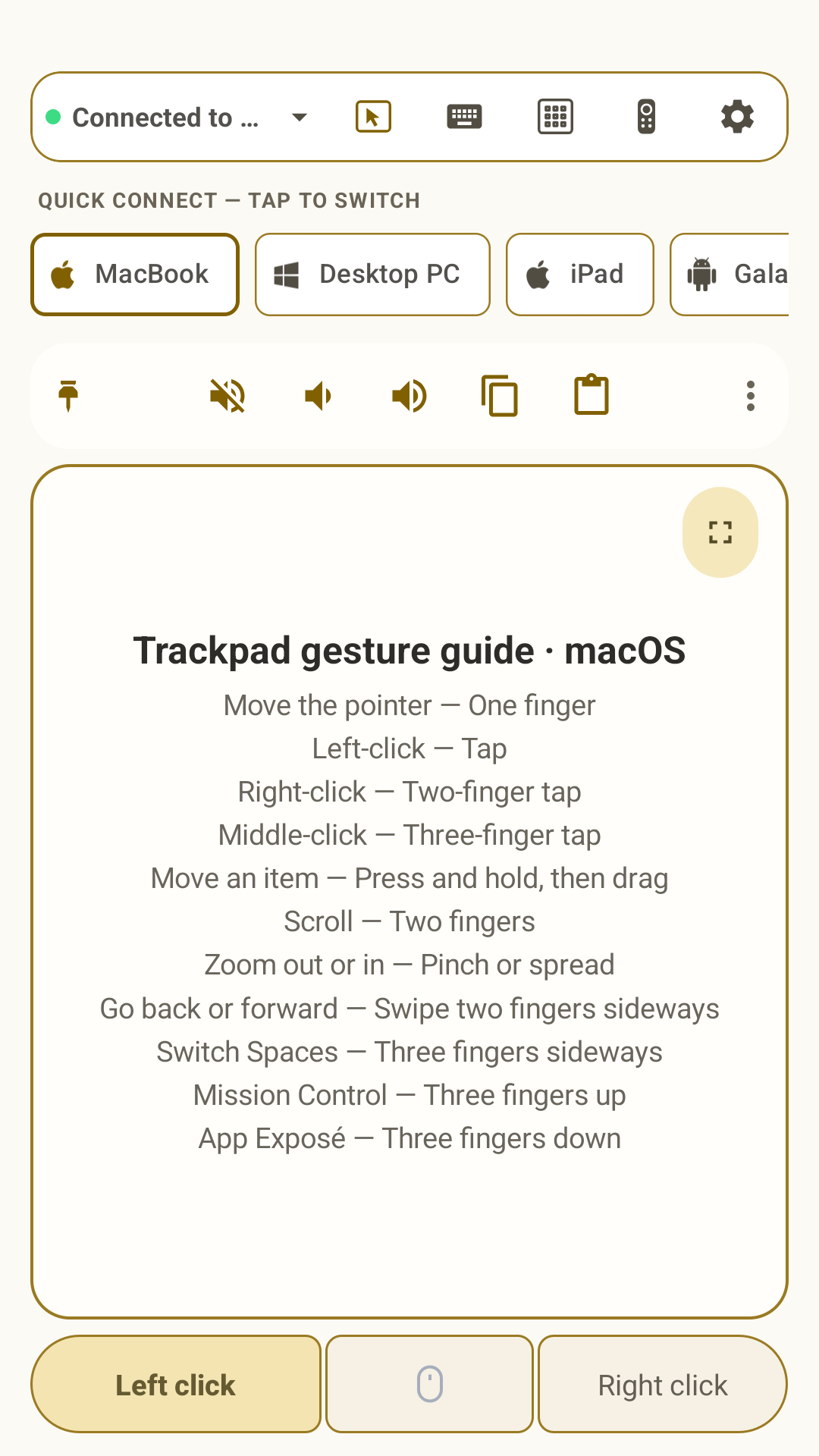
Tap the connected-device name in the header or full-screen device bar, then choose a saved device. Omny Pad releases active keys and buttons, applies that device's OS profile, and unlocks input only when the new host is ready. Quick Connect keeps frequently used devices close without maintaining simultaneous active input.
TRACKPAD
Omny Pad supports familiar multi-touch actions, but it does not impersonate a proprietary Apple trackpad or Windows Precision Touchpad. Some system gestures are translated into standard mouse input or OS shortcuts, so behavior can differ by host and app.
Full-screen mode gives the touch surface the largest available area. Rotating a phone to landscape opens the landscape full-screen trackpad. Optional in-pad mouse buttons remain a consistent width instead of stretching across large displays.
KEYBOARD
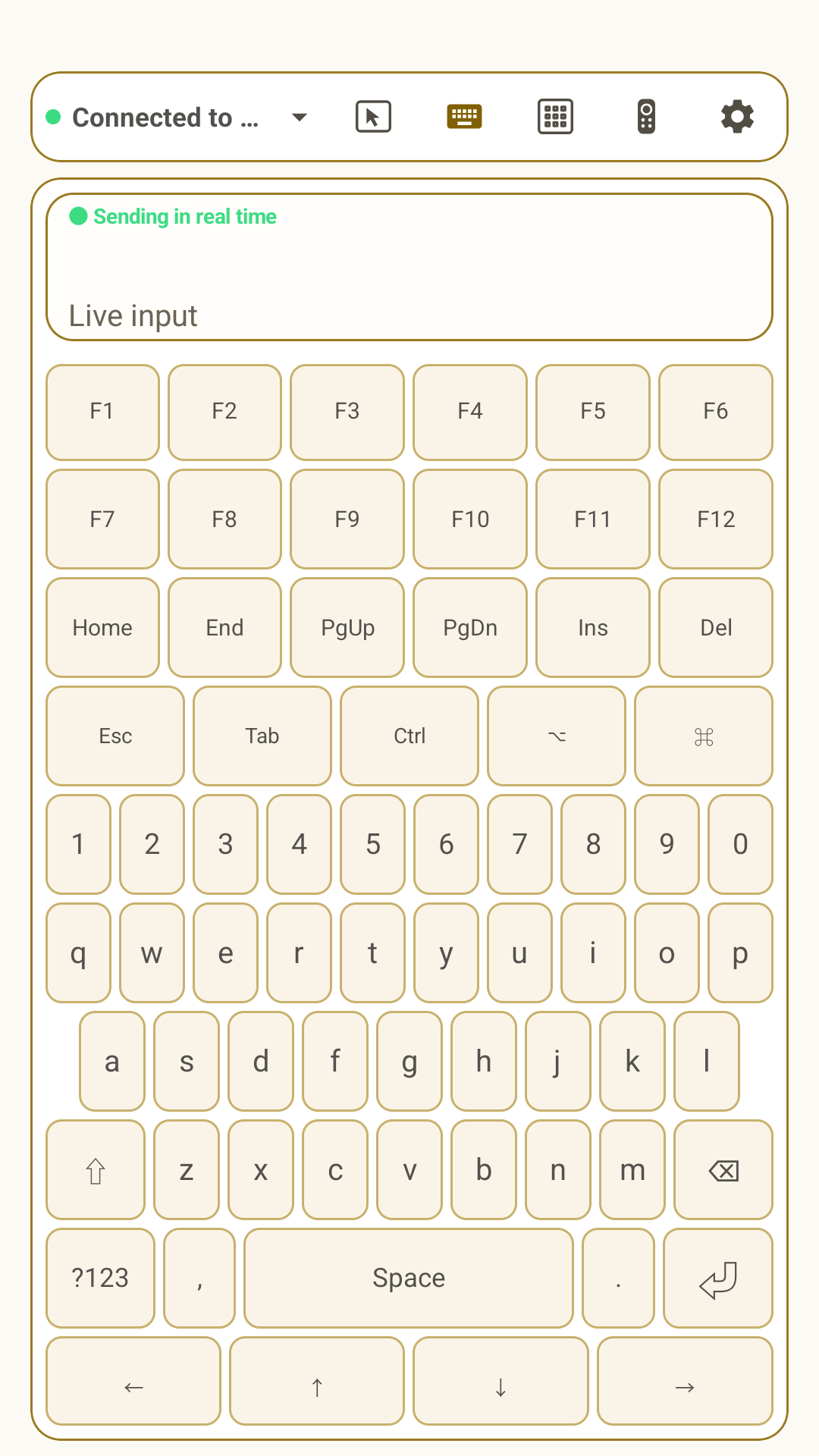
The built-in keyboard sends key events to the selected host while its live view shows what you are composing. Line breaks appear in the preview, and the preview yields space first so every key stays visible on shorter screens. Use the language control to match Omny Pad and the host keyboard layout when characters differ.
Function, navigation, modifier, and symbol keys are arranged for the available screen size. The receiving operating system and app decide which shortcuts are supported.
NUMPAD & CALCULATOR
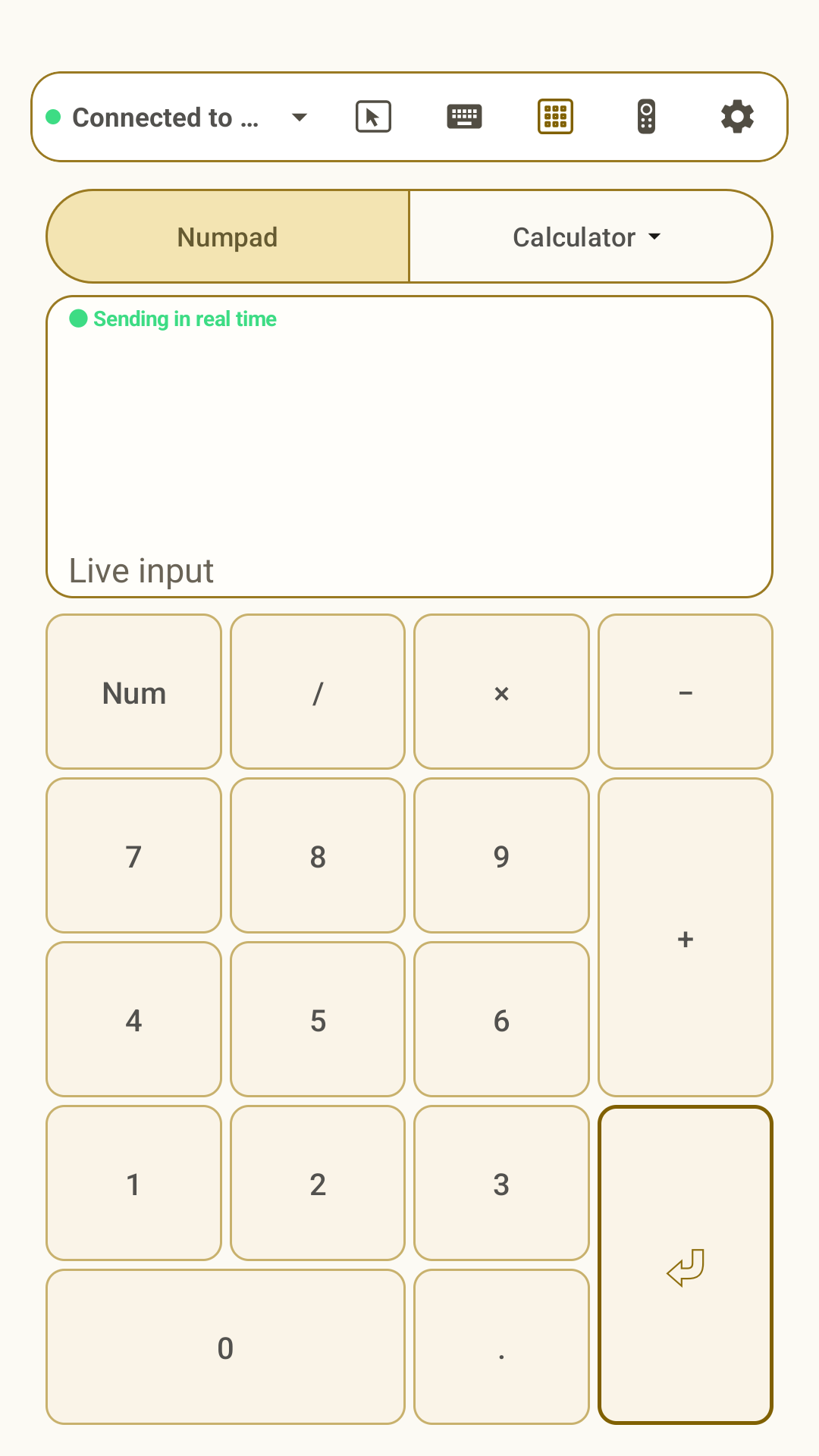
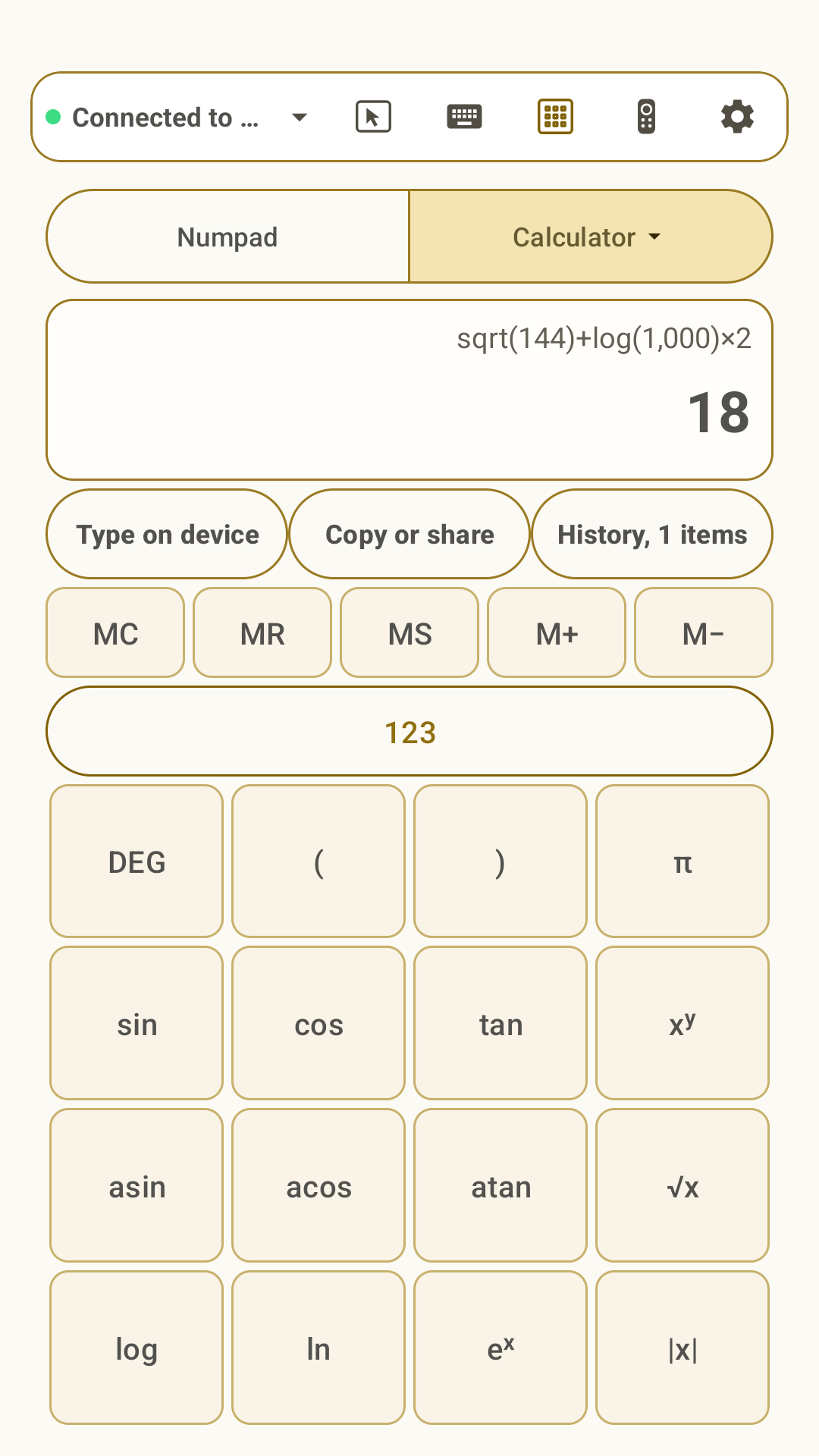
The dedicated keypad includes the standard numpad keys and a live input view. It is designed for portrait use and remains available when the phone is rotated 180 degrees. Landscape requests return to the portrait keypad with a brief explanation.
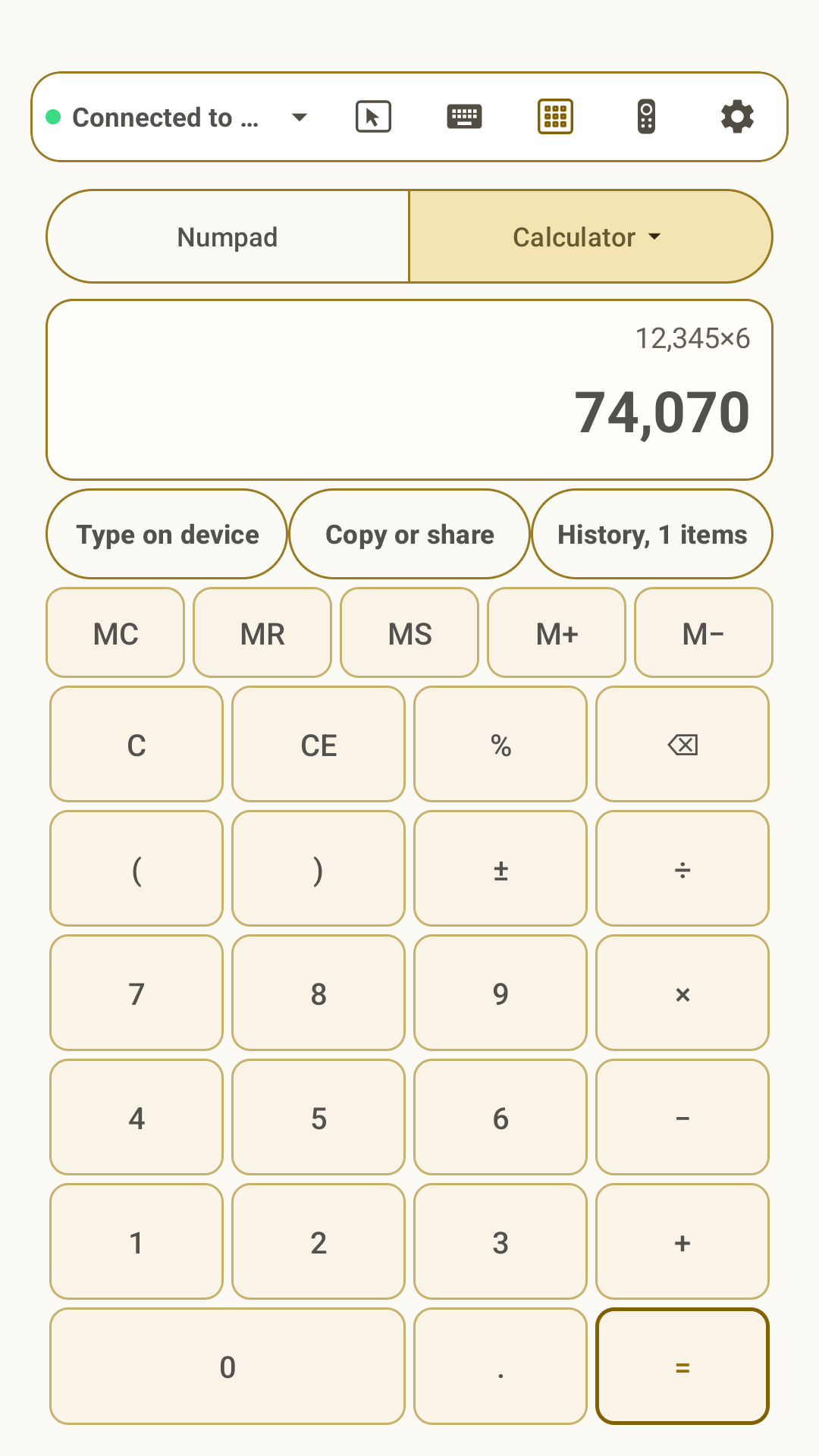
Switch between standard and scientific modes. Results use thousands separators and support decimal values. You can type the formatted result into the connected device, copy or share a result, include the calculation expression when sharing, and revisit calculation history. Continuing after a result uses that result unless you clear or start a new expression.
REMOTE & PRESENTER
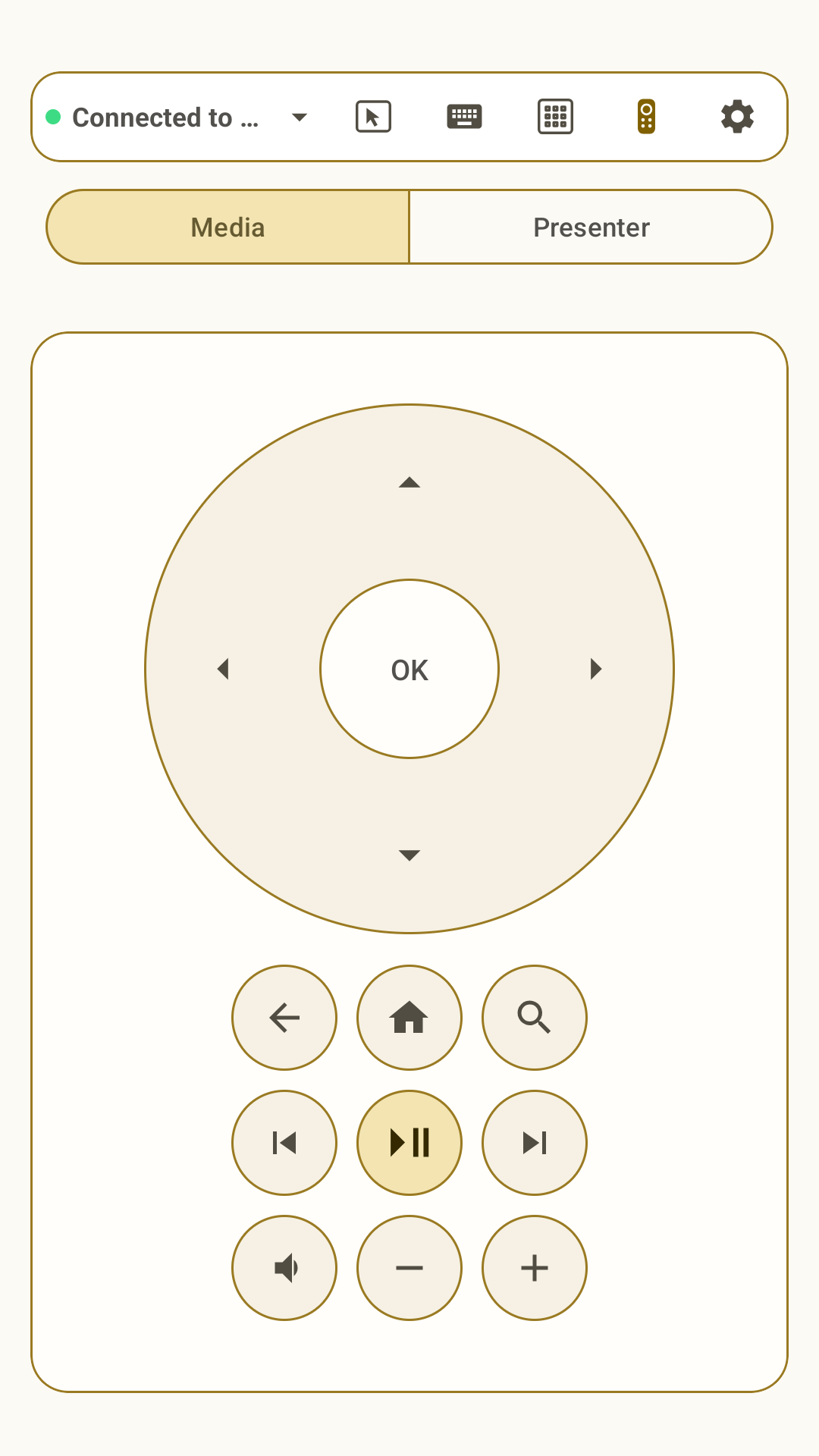
Use directional navigation, selection, playback, track, and volume controls. Consumer-media keys depend on the host, active media session, driver, and app, so unavailable commands are not a promise of universal support.
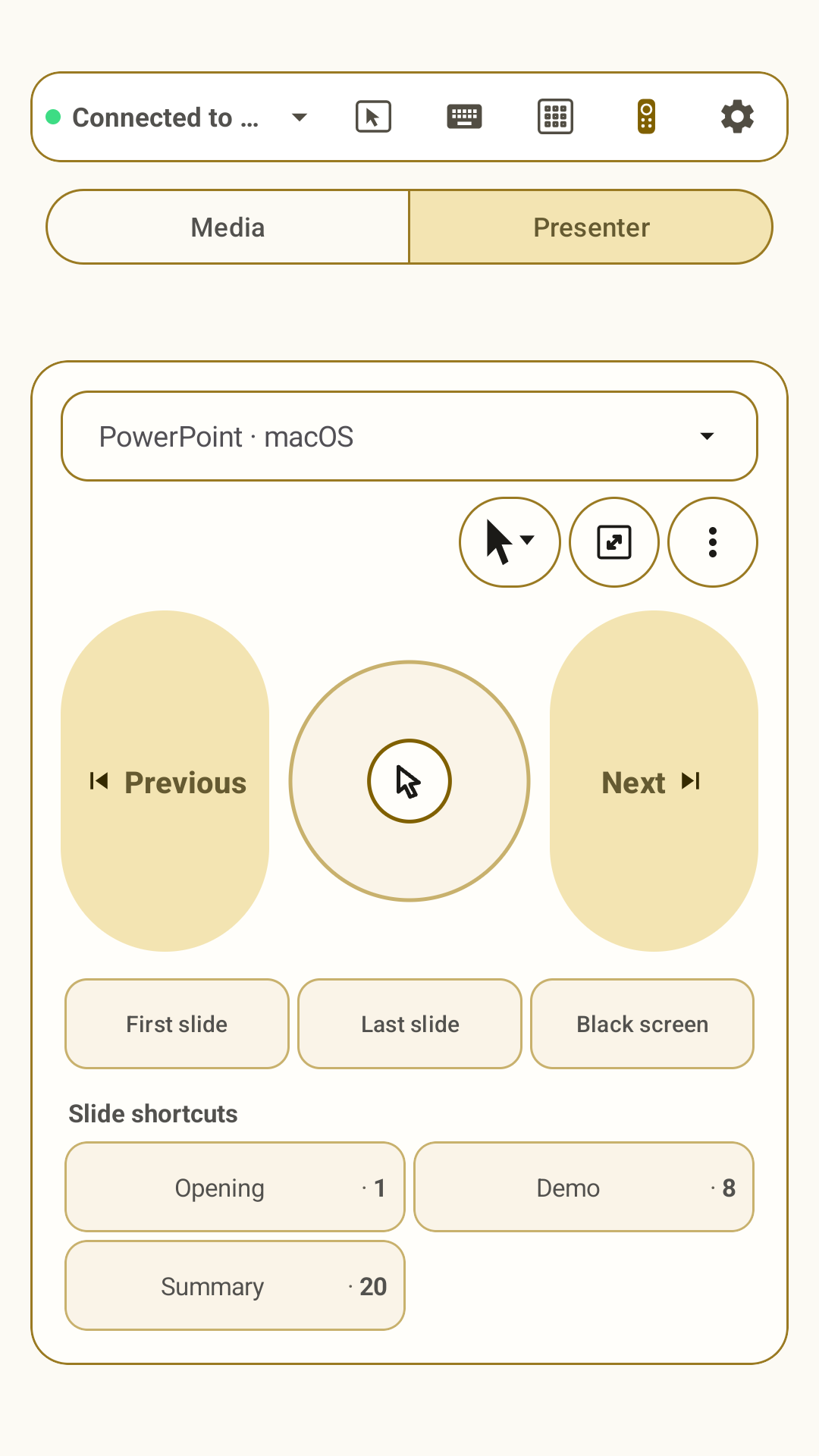
Select the app used for your presentation. Omny Pad applies the matching Windows or macOS command profile and updates labels and available tools for PowerPoint, Google Slides, Keynote, PDF, and other supported environments.
The central pointer pad keeps a consistent movement feel across cursor, laser, and pen modes. Mode icons show the command Omny Pad will send; Bluetooth HID cannot read back the presentation application's internal state.
Save up to six named destinations, such as “Demo · 8,” and tap one to enter its slide or page number as one protected command. The current presentation must already be active on the host.
The more menu contains shortcut management, supported slide-show start actions, and app-specific tools. Unsupported actions stay hidden instead of appearing as non-working controls. Presenter is designed for portrait use.
QUICK PANEL
Quick Panel is available on the trackpad. Pin it open or let it collapse automatically. Regular mode begins with one compact row; full-screen can use up to two rows. Expand the panel to reach additional selected actions without silently dropping them.
Open the three-dot menu to choose actions and arrange their order. Media, clipboard, brightness, navigation, and other commands can vary by host OS and active application.
Build multi-step shortcuts from supported keys and delays. Keep sequences short, test them in the target app, and remember that a host can handle the same shortcut differently.
SETTINGS & PRIVACY
Settings include connected-device management, display orientation and themes, vibration, trackpad behavior, Quick Panel, macros, tutorials, guides, support, privacy, and sharing. Device aliases, settings, macros, and calculation history are stored locally.
Omny Pad does not upload typed text, individual keys, clipboard content, drafts, macros, calculations, pointer paths, or saved Bluetooth identities as analytics or diagnostics. Where these controls are available in your installed version, usage analytics and crash/performance diagnostics are separate, optional settings that remain off until you enable each one. AdMob and its consent service process advertising information independently, as explained in the complete privacy policy.
Read the complete privacy policyTROUBLESHOOTING
Wait for Omny Pad's ready state. If it never appears, remove the saved pairing on both devices, keep the Omny Pad connection screen open, and pair again from the host.
Check the saved device's OS profile and make sure the keyboard layout selected on Omny Pad matches the active host layout.
Confirm that the selected OS or presentation profile is correct. Consumer and shortcut behavior can still depend on the driver, active media session, application, or external display.
Start pairing again in Omny Pad, approve Android's discoverable request, refresh the host's list, and keep the devices nearby.
Still need help? Email dev@appsolute.krwith the phone model, Android version, host OS, and the step where the issue occurs. Never include passwords or private typed content.