
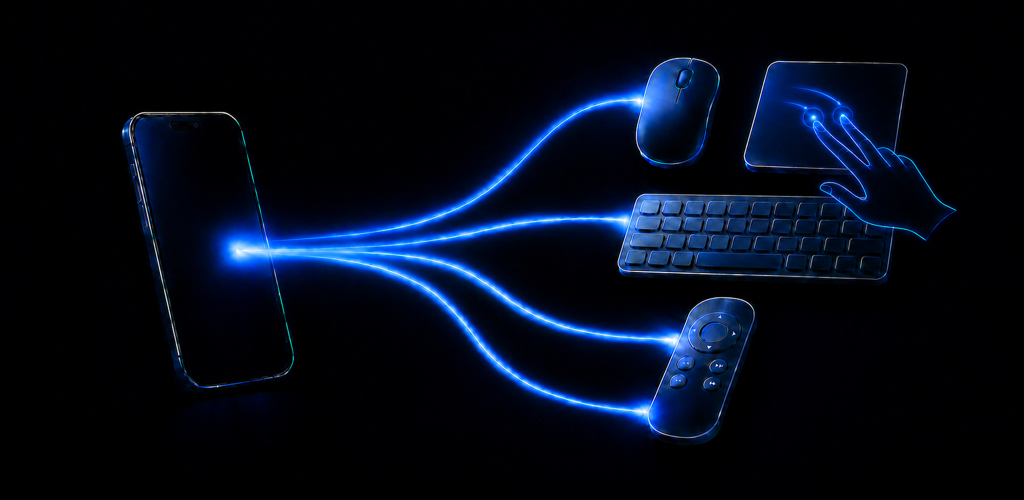
A compatible Android phone can present itself to a computer, tablet, or another supported host as a Bluetooth input device. That makes the phone useful as a wireless mouse, multitouch trackpad, keyboard, media remote, presenter, or numeric keypad when dedicated controls are unavailable or inconvenient.
Omny Pad brings those controls together and adds standard and scientific calculators that can type a formatted result on the connected device.
What Bluetooth HID means
HID stands for Human Interface Device, the class used by familiar peripherals such as keyboards and mice. Android exposes a public Bluetooth HID Device API that lets a compatible phone register as an input device and send reports to a paired host. The API was added in Android 9, or API level 28, according to the Android BluetoothHidDevice reference.
The practical difference is where the connection happens. A network remote can require software on both devices or a shared local network. With Bluetooth HID, a compatible host sees the phone as a standard input device and does not need a separate Omny Pad companion app.
What you need before pairing
- A compatible Android phone or tablet: Omny Pad supports Android 9 or later. Bluetooth behavior can still vary by manufacturer and model.
- A compatible host: The computer, tablet, or Android device must accept the relevant Bluetooth keyboard or mouse profile.
- Nearby devices permission: Recent Android versions require permission before an app can register, advertise, or connect through Bluetooth.
- A clear first pairing: Start from the host's Bluetooth settings and confirm the pairing request on both devices.
Compatibility is not identical across every operating system and application. Pointer and standard keyboard input are generally the most portable; media keys, brightness controls, presentation shortcuts, and multi-finger system actions can depend on the host profile, driver, active media session, or app.
Pair the phone as an input device
- Open Omny Pad and start a new connection.
- Allow Nearby devices access if Android requests it.
- Open Bluetooth settings on the device you want to control.
- Select the phone name shown in Omny Pad.
- Confirm the pairing request.
- Wait until Omny Pad reports that input is ready, then select the control surface you need.
If the phone does not appear, keep the Omny Pad pairing screen open and restart discovery on the host. If an older pairing is stuck, remove it from both devices and pair again. The complete Omny Pad user manual includes Windows, macOS, iPadOS, iOS, Linux, and Android notes.
Choose the right control surface
Trackpad for pointer movement and gestures
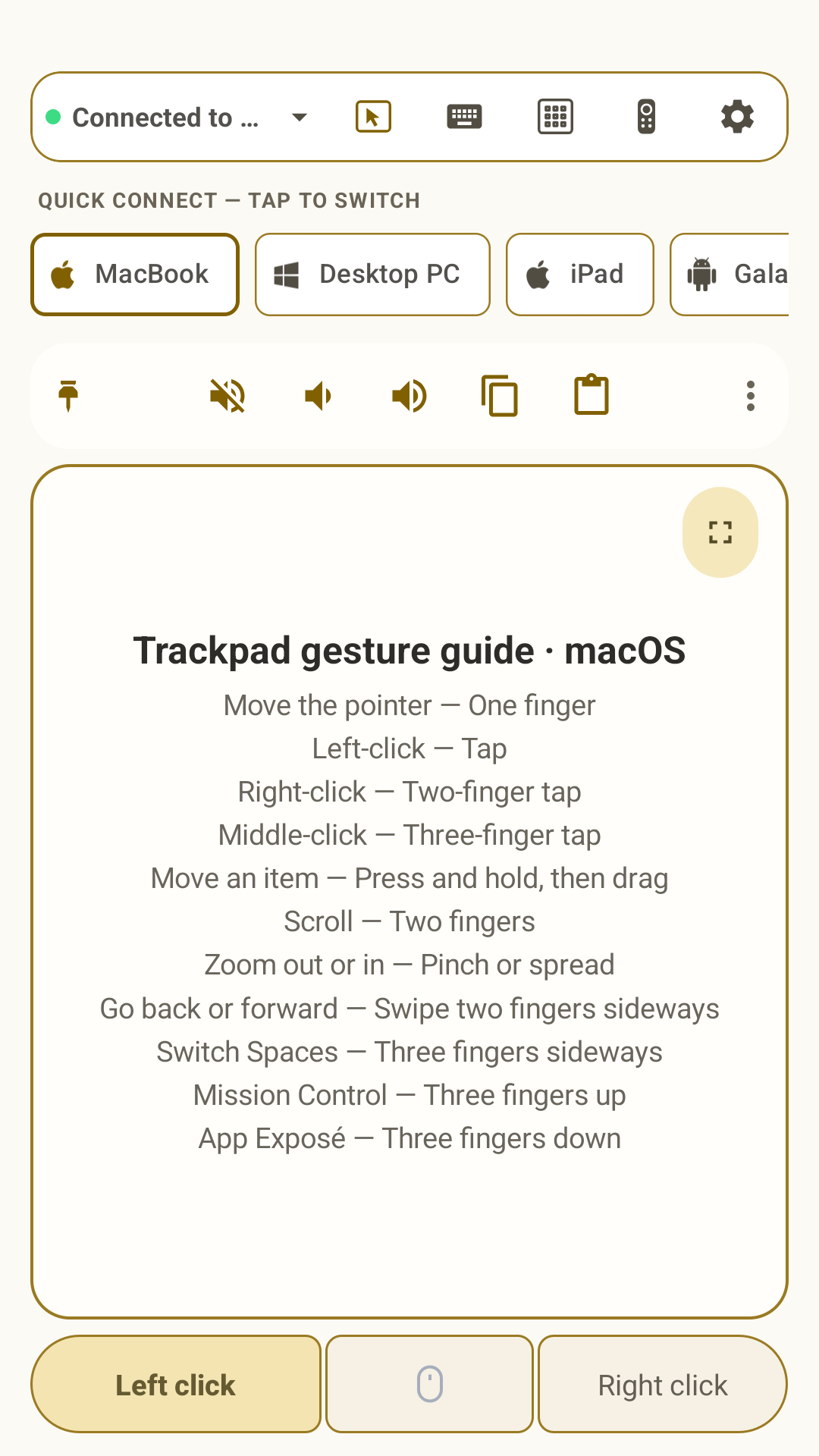
Trackpad mode handles pointer movement, click, drag, inertial scrolling, right click, pinch zoom, and host-specific three- and four-finger shortcuts. These are familiar hardware-inspired interactions delivered through standard Bluetooth reports and shortcuts, not native proprietary touchpad events.
Keyboard for text, symbols, and shortcuts
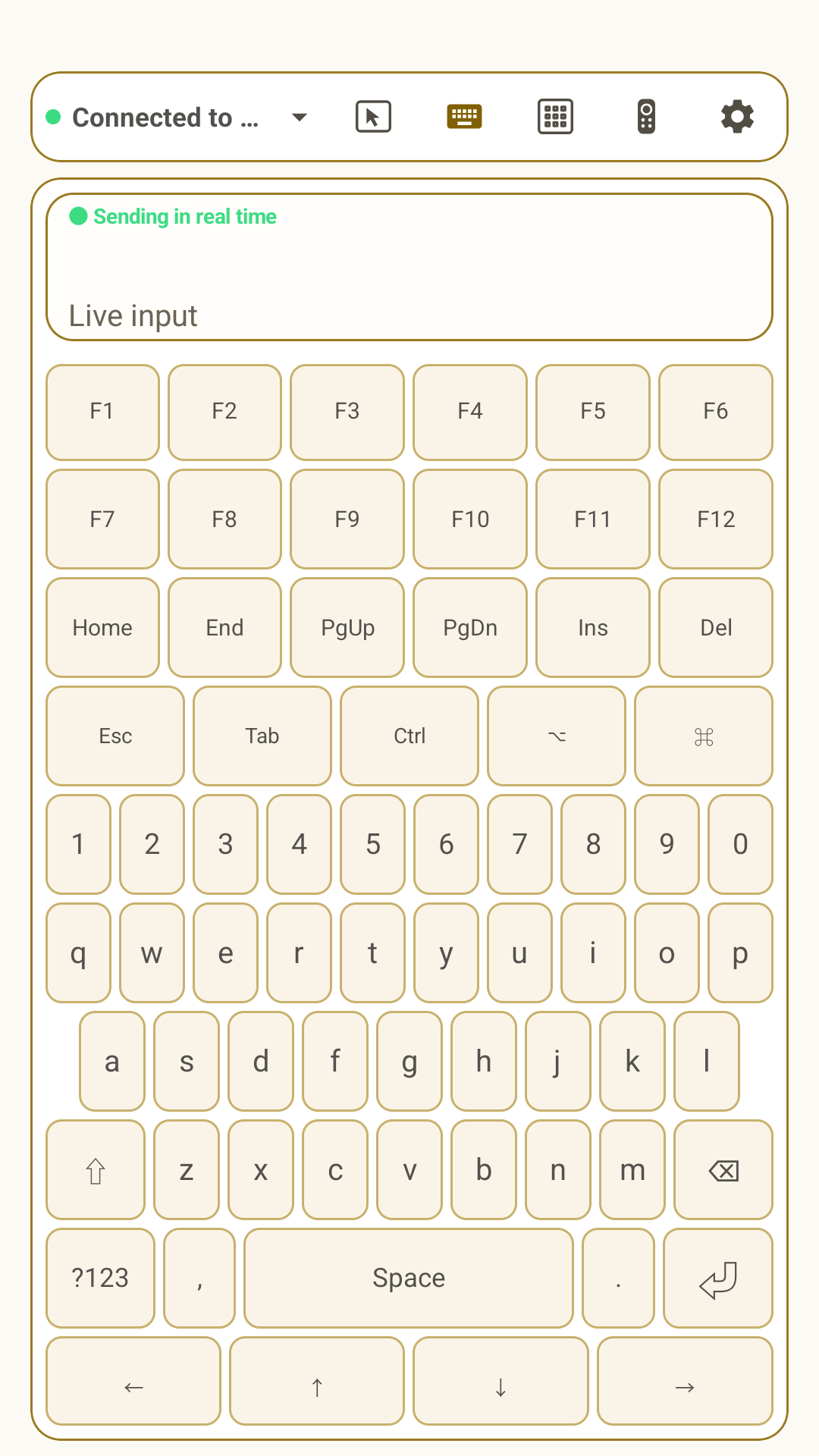
The full keyboard includes a live input view, desktop modifiers, arrows, navigation keys, symbols, and function keys. Matching the Omny Pad keyboard layout to the layout active on the host is important for non-Latin scripts and punctuation.
Media remote and presenter for focused control
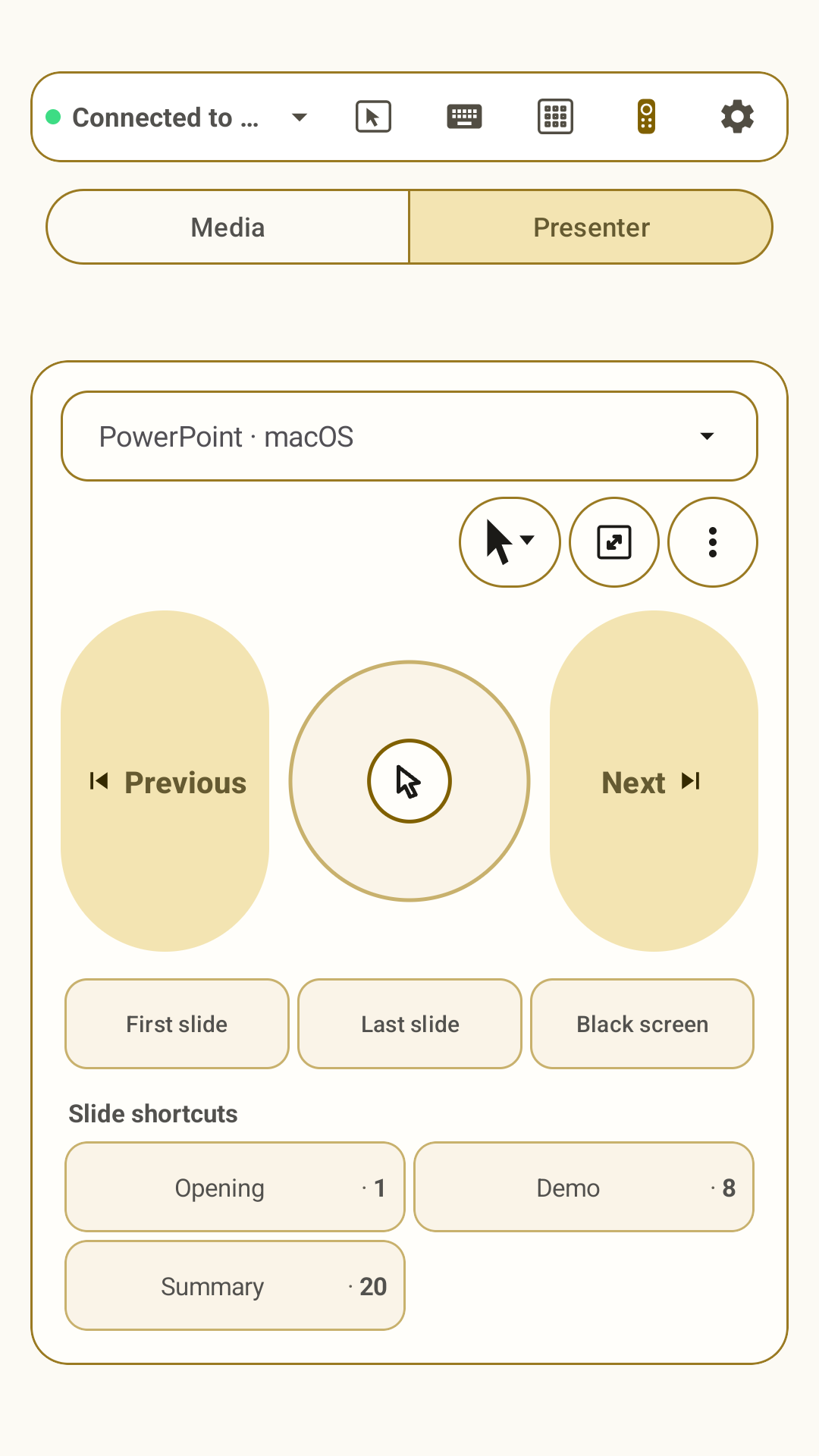
Media mode groups directional, playback, track, and volume controls. Presenter mode adds app-and-OS profiles, a pointer pad, cursor, laser and pen modes, slide navigation, and up to six named slide or page shortcuts. The host application still decides which commands it accepts.
Numeric keypad and calculators for number-heavy work
The portrait numeric keypad mirrors a familiar desktop numpad and shows live input. The standard and scientific calculators format thousands and decimal results, keep calculation context visible, and can type the result on the connected device or copy and share it.
Switch hosts without sending input to the wrong device
Omny Pad keeps saved devices paired but allows only one active input target. During a switch it releases pressed keys and mouse buttons, changes the operating-system profile, and waits for the new host to become input-ready. This single-active-host model is more reliable than trying to keep every saved computer actively controlled at once.
When dedicated hardware is still better
A phone is a strong backup and short-session controller because it is usually charged, familiar, and already within reach. Dedicated hardware remains better for prolonged typing, precision creative work, competitive games, or accessibility needs that depend on tactile feedback.
The point is not to claim that a phone is identical to every physical input device. It is to make a broad set of useful controls available exactly when they are needed.
Put a spare input device in your pocket.
Download Omny Pad to turn a compatible Android phone or tablet into a wireless trackpad, keyboard, media remote, presenter, numpad, and calculator.
 Google Play